 VexAI
Translate any web page — and keep the original
VexAI translates articles, documentation, forums and online shops right in the page. Replace the text with your language while keeping the layout, or show the original and the translation side by side so you can learn as you read.
Web page translation and the selection popup work without an account.
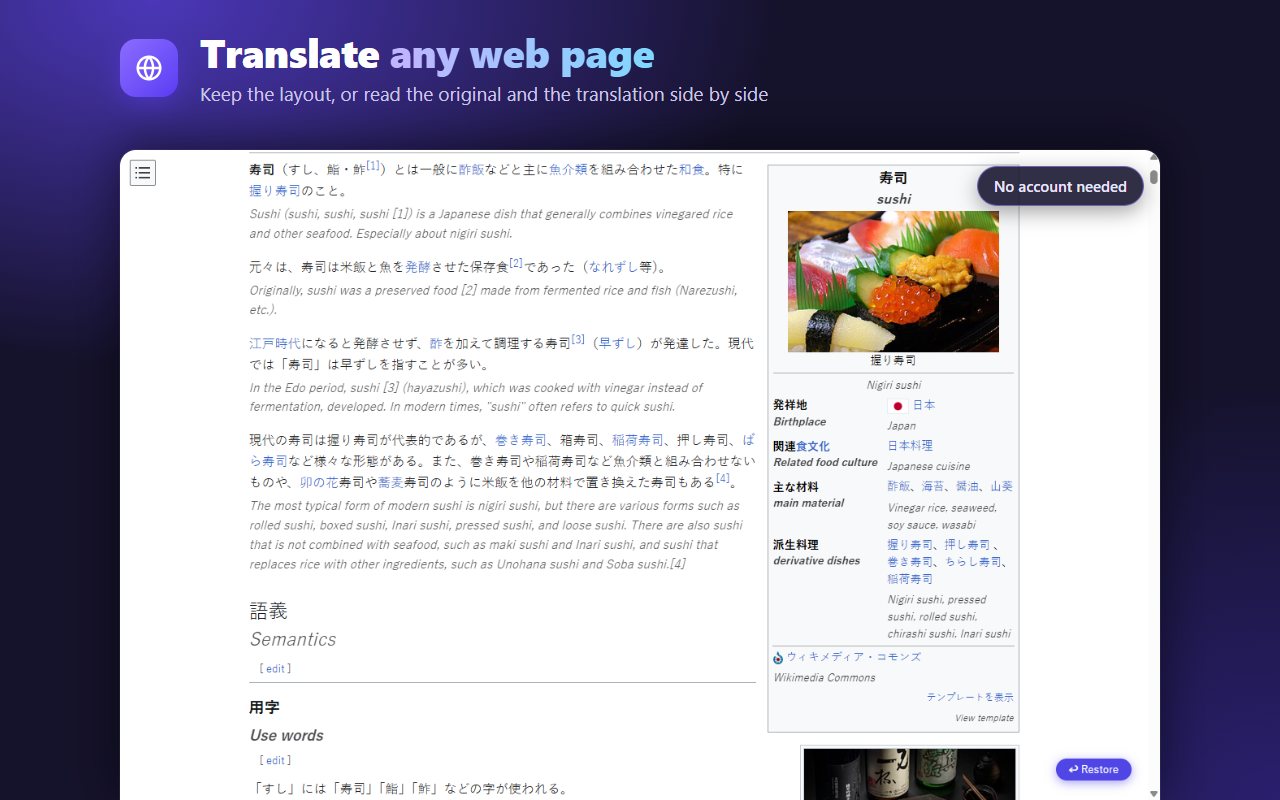
Three ways to translate
- Whole page. Click the VexAI icon → General → Translate all. Text is replaced in place; links, images and the page layout stay as they are. One click restores the original.
- Bilingual mode. Each paragraph keeps its original text with the translation right below it — ideal for language learners and for checking technical terms.
- Selection popup. Select any word or sentence to see its translation instantly, with a dictionary entry for single English words. Ask a quick follow-up: explain it, summarize it, or convert a price or a unit.
Go further with AI
- Page Assistant — ask questions about the article you are reading and get summaries and explanations. The page is only read after you turn on "Read page content" for it.
- Advanced translation — choose a tone, a field (legal, medical, gaming…) and how to address the reader, for documents that need more than a literal translation.
- Documents — translate files with your preferred terminology.
Questions
Do I need an account?
No. Whole-page translation, bilingual mode and the selection popup work without signing in. The AI features (Page Assistant, advanced translation) need a free Google sign-in.
Which languages are supported?
More than 100 languages, detected automatically. The extension interface is available in English, Vietnamese, Japanese, Korean and Chinese (Simplified).
Does VexAI read every page I visit?
No. VexAI only reads a page when you use one of its features on that page, and there is no usage tracking in the extension. Details are in the Privacy Policy.